
Public team listings and join requests
Teams can now list themselves in Finder, so players looking for a team can find them and ask to join, and managers approve or decline from the Roster. Hockey teams also get power play and penalty kill lines, and managers can draft lines before the team sees them.
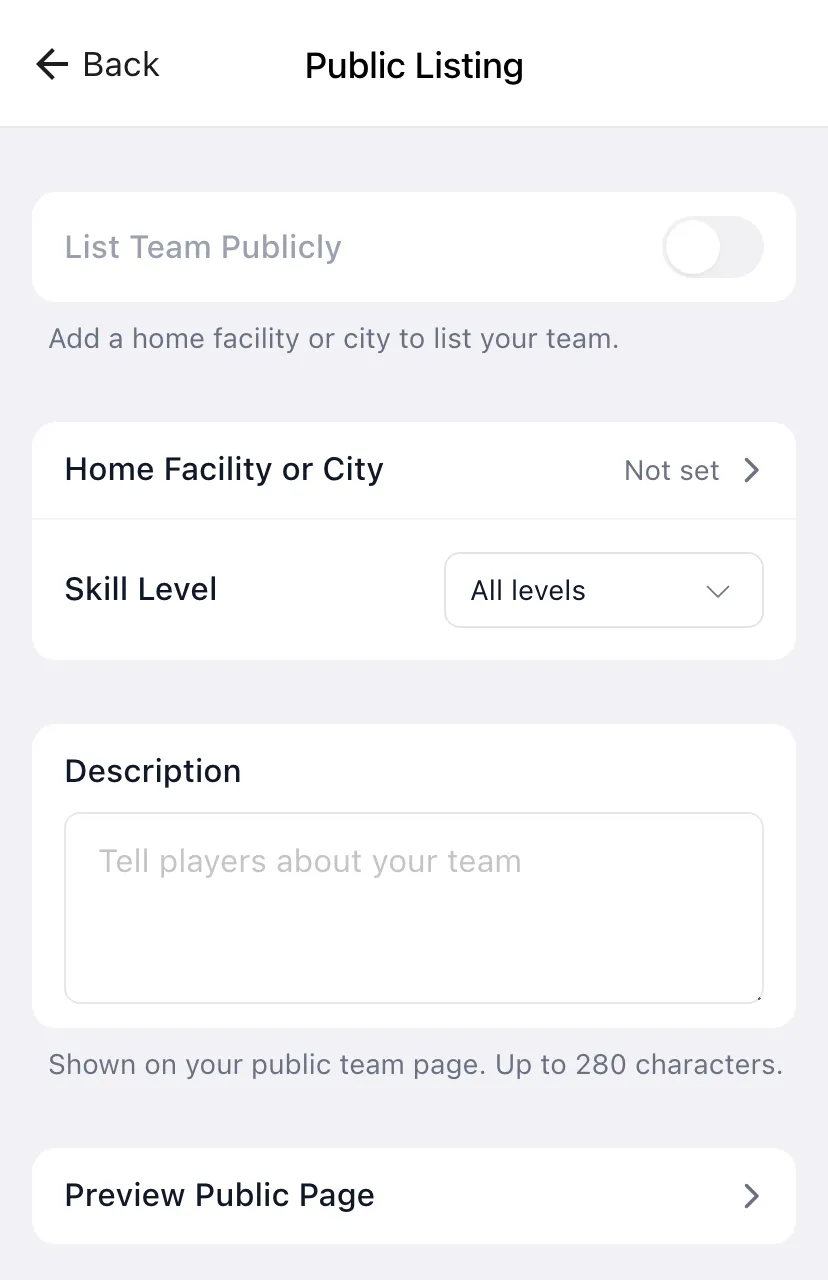
List Your Team in Finder
Public Listing in Team Settings turns on your team's public page. Add a home facility or city to place your pin on the Finder map, pick a skill level from Beginner to Experienced, and write a short description of your team. Your roster, schedule and contact details stay private. Preview Public Page shows exactly what players will see.
When players ask to join, a Join Requests row with a count appears at the top of the Roster. It lists each player's name and any note they left, ready to approve or decline. Managers get a notification when a new request comes in, and it opens Join Requests.
Find a Team and Ask to Join
Finder now has a Teams near you row alongside games and players, plus a Search teams box. Each team's page shows where they play, their level and what they're about, with Request to Join and an optional note for the manager. You can cancel a request while it's pending, and share a team's page with a friend.
When joining a team, Find your team by name sits next to the team code, so players without a code can look up their team instead.
Power Play and Penalty Kill Lines
Lines has Even Strength, Power Play and Penalty Kill tabs for hockey, roller, ball and street hockey teams. Each player shows their regular spot under their name, so it's easy to build units from your lines. Copy Previous and Reset work on the tab you're on.
Printing follows the tab you're on: Even Strength prints your lines, and Power Play or Penalty Kill prints that tab's units, with empty spots left to fill in by hand. The lines card in Chatter notes when power play and penalty kill units are set.
Draft Lines
Draft Lines is in beta, and managers can turn it on under Beta in Team Settings. Lines then show Draft or Draft changes under the title, with Publish, Unpublish and Discard Changes. When publishing, you can choose to post the lines to Chatter at the same time. Edits made after publishing stay hidden until you publish again.
Start in Draft in Team Settings makes every game's lines begin as a draft, and printouts of unpublished lines are marked as a draft.
Improvements
- Players see a note saying lines haven't been posted yet, instead of an empty grid.
- The Even Strength, Power Play and Penalty Kill tabs on Lines match the look of the tabs on Schedule.
- Team store products have a size guide with measurement charts in inches or centimetres.
- Store banners can be cropped to a wide or extra-wide shape when you pick them, with a background colour to fill any space around the image.
- Store orders placed without signing in can be added to your BenchApp account in one tap from the order page, so they show under My orders.
- Jersey Builder links can include a coupon, and the savings show in the price and on the order.
- Teams that haven't ordered jerseys yet see an introduction to BenchApp jerseys in Jersey Builder, with how it works, styles, real photos and pricing.
- The Finder section of your Profile has a new Looking For setting for sparing, pick-up games or joining a team, and Visibility is now a simple switch.
- Notifications has a Ride Requests setting, so you can stop alerts when teammates need a ride.
- Links in an event's notes open when you tap them.
- Finding a spare goalie from a missing-goalie alert opens Post to Finder with Goalie already added, and the form explains how Finder works.
- On iPhone, PDFs can be shared to Chatter from other apps, and they keep their file names.
Fixes
- When the schedule can't load, it says so and offers Try Again instead of looking empty.
- The schedule tries again on its own after a brief connection problem before showing an error.
- League owners can close the team limit warning to reach their teams and rosters.
- The photo dots on store products are easy to see on any picture.
- Labels on the Preferences screen stay on one line.
- Store settings and Orders always show a menu or back button at the top.